Importing Dashboard and Timeline Configuration
Once a dashboard configuration has been defined, it can be exported via the ‘FG381 - Payroll Dashboard Configuration’ form. This file can then be used to import the dashboard configuration into a different Ascender Pay environment or it can be modified to suit different client country, paygroup and/or dates and then imported back into the same environment.
The Export/Import process contains the following three steps:
Export the dashboard details into CSV files for Dashboard Items and/or Timeline Items. This can be done via FG381. For more details please refer to the Export Dashboard and Timeline Items section of this user guide.
Import the CSV files into temporary tables. Further details are below.
Load the imported dashboard details. This can be done via FG381. For more details please refer to the Import Dashboard Details section of this user guide.
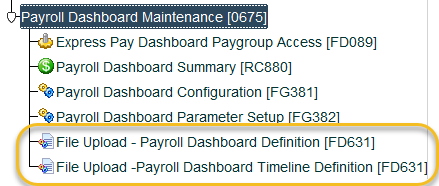
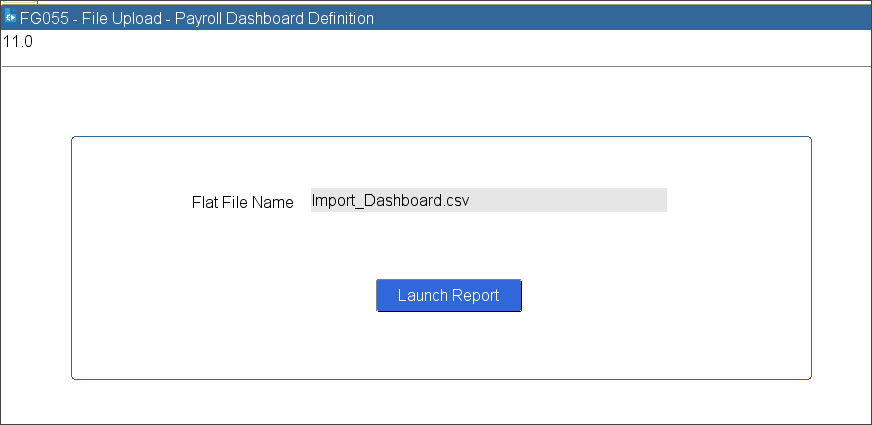
The CSV files can be loaded using the report ‘RG055 - File Upload‘ as located on Ascender Pay menu ‘0675 - Payroll Dashboard Maintenance’.
The CSV files should be copied to your pre-defined External Load directory on your database server as defined in the CON_DEF EXTERNAL_LOAD_PATH.
Note: If you are using a Unix file format database server, please ensure the files are transferred to the directory in Unix format rather than Dos format. Otherwise, errors could occur in the file load unless all column values are enclosed with double quotes.
Enter the CSV file name as the parameter for the report.
Dashboard Items CSV File Format
The following columns should be defined in the CSV file for dashboard items:
|
Column Field |
Data Type (max length) |
Description |
|
Dashboard Id |
Number |
Enter the same number for all entries for the specific dashboard |
|
Client |
Char (5) |
The client country code for the dashboard as defined in the code kind CLIENT. |
|
Paygrp |
Char (5) |
The paygroup code for the dashboard as defined in the code kind PAYGRP. This field is Optional |
|
Start Date |
Date |
Start date of the dashboard definition. Enter in date format DD/MM/YYYY e.g. 24/07/2021 |
|
End Date |
Date |
End date of the dashboard definition. Enter in date format DD/MM/YYYY e.g. 24/07/2021 This field is Optional |
|
Action Type |
Char (10) |
Action Type for the dashboard action. Valid values are: REPORT REP_CHAIN TASK |
|
Task Type |
Char (10) |
Task actions can optionally be assigned a task type to help distinguish the purpose of the task. The task type should be entered as defined in the code kind TASK_TYPE. Note: If the task type is not yet defined in the code kind, it will be added during the import process if the task type description is also populated. This field is Optional |
|
Task Type Description |
Char (50) |
The description for the task type. This is only required if the task type has not yet been defined in the code kind in the Ascender Pay environment. This field is Optional |
|
Action |
Char (20) |
The action to be performed in the dashboard. Depending on the action type entered this should be: For Action Type REPORT - a valid Ascender Pay Oracle report, SQL report or BI Publisher report code as defined in code kind PROG For Action Type REP_CHAIN - a valid Ascender Pay report chain as defined in the code kind REP_CHAIN For Action Type TASK - a dashboard ask as defined in code kind PAYROLL_TASKS. Note: If the task is not defined in the code kind, it will be added during the import process if the action description is also populated. |
|
Action Description |
Char (50) |
The description for the action task. This is only required if the task has not yet been defined in the code kind in the Ascender Pay environment. This field is Optional |
|
Update Mode |
Char (1) |
Flag to indicate if the action should be run in update or non-update mode. Valid values are Y or N. If the action does not have a parameter for update mode, leave this field blank. This field is Optional |
|
Action Freq |
Char (20) |
Determines if the action should be repeated for every payrun within the pay period or just once for the pay period. Valid values are PAYRUN and PAY_PERIOD. |
|
Seq |
Number |
Number indicating the sequence in which the action should display in the dashboard. |
|
Date to Offset |
Char (20) |
Indicates which date the action due date should be calculated from. Valid values are PERIOD_END_DATE and PAYDATE. |
|
Offset Days |
Number |
Used to calculate the action due date. The number of days prior to the date to offset date that the action must be completed by. For Example, if the Date to Offset is set to PAYDATE and the Offset Days is set to 4, then the action is due 4 days prior to the pay period paydate. |
|
Action Due Time (HH:MM) |
Char (5) |
The action due time can be specified for actions which need to be completed by a specific time on the due date. Due time should be entered in 24-hour format HH:MM - e.g. 14:00 if it is due at 2pm. This field is Optional |
|
Payroll Chain |
Char (1) |
Flag to indicate if the action should be performed every time for a payroll chain. If the payroll chain is reversed once this action is completed, then a new action record will be created for it to ensure it is completed for every update payrun. Valid values are Y and N. This field is Optional |
|
Disbursement Chain |
Char (1) |
Flag to indicate if the action should be performed every time for a disbursement chain. If the disbursement chain is reversed once this action is completed, then a new action record will be created for it to ensure it is completed for every update disbursement. Valid values are Y and N. This field is Optional |
|
Assigned to Role |
Char (50) |
Actions can be assigned to different roles as defined in ‘FE600 - Express User/Group Security’ so they can only be updated via the dashboard by members of that role. Note: If the role does not exist in ‘FE600 - Express User/Group Security’ then it will be created by the import as long as the Assigned to Role Description is populated. This field is Optional |
|
Assigned to Role Description |
Char (50) |
The description for the Assigned to Role. This is only required if the Assigned to Role has not yet been defined in ‘FE600 - Express User/Group Security’. This field is Optional |
|
Include in Client/ End User View |
Char (1) |
Flag to indicate if this action should be viewable by the client/end user in the dashboard. This is only required where the Client/End User View functionality is being used. Valid values are Y and N. This field is Optional |
Timeline Items CSV File Format
The following columns should be defined in the CSV file for dashboard items:
|
Column Field |
Data Type (max length) |
Description |
|
Dashboard Id |
Number |
Enter the same number for all entries for the specific dashboard |
|
Client |
Char (5) |
The client country code for the dashboard as defined in the code kind CLIENT. |
|
Paygrp |
Char (5) |
The paygroup code for the dashboard as defined in the code kind PAYGRP. This field is Optional |
|
Start Date |
Date |
Start date of the dashboard definition. Enter in date format DD/MM/YYYY e.g. 24/07/2021 |
|
End Date |
Date |
End date of the dashboard definition. Enter in date format DD/MM/YYYY e.g. 24/07/2021 This field is Optional |
|
Payrun Definition Date |
Char (1) |
Flag to indicate if the timeline item is a date defined as part of the payrun from the code kind PEPAYRUN_DATES (enter value Y), or if it is a custom timeline date (enter value N). Valid values are Y and N. |
|
Timeline Item |
Char (50) |
The date to be displayed in the timeline. If it payrun definition date flag is set to Y, then this date must be defined in the code kind PEPAYRUN_DATES. If the payrun definition date flag is set to N, then this date must be defined in the code kind TIMELINE_DATES. Note: If the timeline item is not defined in the code kind TIMELINE_DATES, it will be added during the import process if the timeline item description is also populated. |
|
Timeline Item Description |
Char (50) |
The description for the timeline item. This is only required if the timeline item has not yet been defined in the code kind in the Ascender Pay environment. This field is Optional |
|
Date to Offset |
Char (20) |
Indicates which date the timeline date should be calculated from. Valid values are PERIOD_END_DATE and PAYDATE. This field is only required if Payrun Definition Date is set to N. |
|
Offset Days |
Number |
Used to calculate the timeline date. The number of days prior to the date to offset date. For Example, if the Date to Offset is set to PAYDATE and the Offset Days is set to 4, then the timeline date is 4 days prior to the pay period paydate. |